

















Table of Contents
- Key Points
- Introduction to Illustrator Scripts
- Practical Example: Using the Fillinger Script
- General Steps for Using Illustrator Scripts
- Pricing and Availability
- Advantages and Disadvantages of Using Illustrator Scripts
- Core Features of Effective Illustrator Scripts
- Use Cases for Illustrator Scripts
- Frequently Asked Questions
- Related Questions


Practical Example: Using the Fillinger Script
Step-by-Step Guide to Downloading and Installing the Fillinger Script
The Fillinger script is a valuable tool for designers who frequently need to fill shapes with various objects in Adobe Illustrator. Here's a step-by-step guide to downloading and installing this script:
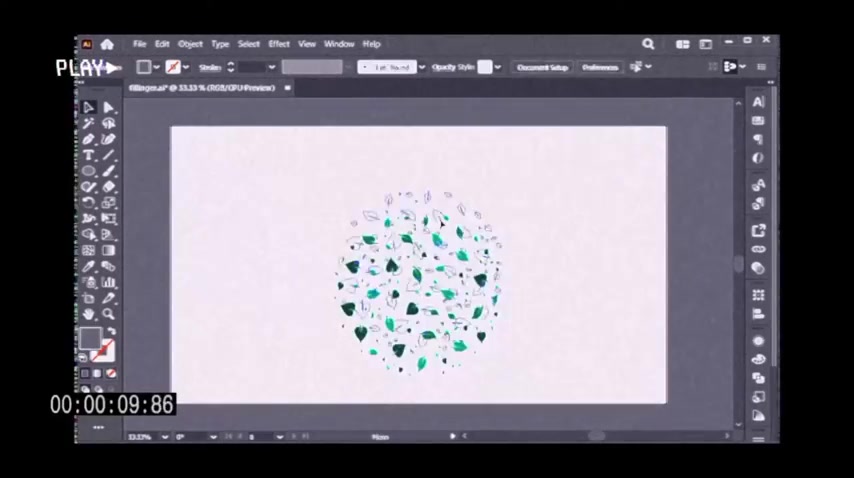
- Download the Script:
- First, you need to download the Fillinger script from a trusted source. The link provided is
https://github.com/alexander-ladygin/illustrator-scripts/blob/master/fillinger.jsx. - Navigate to the GitHub page where the script is hosted.
- Click on the 'Raw' button to view the script's code.
- Save the file as
fillinger.jsxon your computer. Make sure the file extension is.jsx.
- First, you need to download the Fillinger script from a trusted source. The link provided is
- Locate the Illustrator Scripts Folder:
- Open your computer's C drive, where Windows is installed.
- Go to 'Program Files' > 'Adobe'.
- Find your Adobe Illustrator version (e.g., 'Adobe Illustrator 2023').
- Open the Illustrator version folder, then navigate to 'Presets' > 'en_US' > 'Scripts'.
- Install the Script:
- Copy the downloaded
fillinger.jsxfile. - Paste the script file into the 'Scripts' folder you located in the previous step. If prompted, provide administrator permission to copy the file.
- Copy the downloaded
Now the Fillinger script is installed in your Adobe Illustrator.
How to Use the Fillinger Script in Adobe Illustrator
Once the Fillinger script is installed, you can use it to fill shapes efficiently. Here's how:
- Open Adobe Illustrator:
- Launch Adobe Illustrator on your computer.
- Create or Open a Document:
- Create a new document or open an existing one where you want to use the script.
-
Draw Shapes:
-
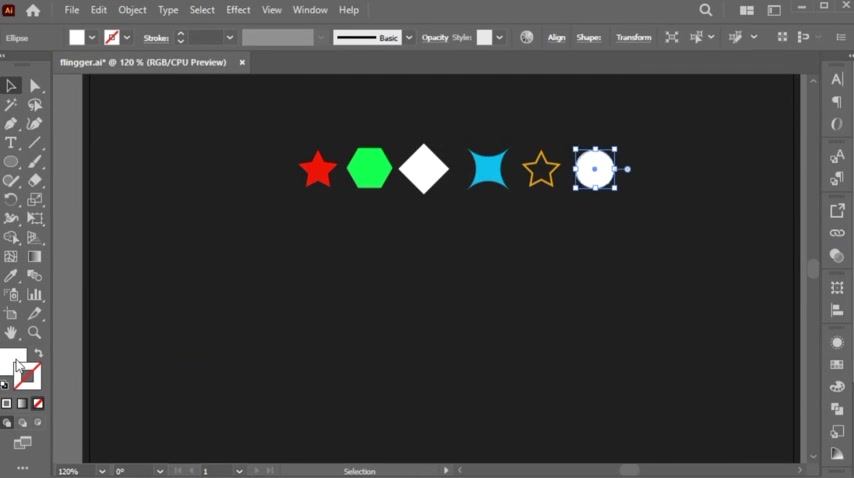
Use the Shape tools (e.g., Rectangle Tool, Ellipse Tool, Star Tool) to create the shapes you want to fill with objects.
-
Apply different colors to these shapes for variety.
-
- Type a Letter & Create Outlines
- Use the Type tool to type a letter on the canvas .
- Right click on the letter and select 'Create Outlines'
- Select the Shapes and Letter:
- Select all the shapes you've created and the letter. Ensure all the objects are selected at the same time.
- Access the Script:
- Click on 'File' in the menu bar.
- Go to 'Scripts' and select 'Fillinger'.
- The Fillinger script window will appear.
- Configure the Script Settings:
- Item Size: Set the maximum and minimum size of the objects as a percentage of the total size (e.g., Max: 10%, Min: 4%).
- Min Distance: Set the minimum distance between the filling items (e.g., 0).
- Resize Value: Set the value to resize items (e.g., 70).
- Rotate Items: Choose whether to rotate items randomly or by a value.
- Item to Fill: Select 'On Top' to fill on top of the shape.
- Grouping: Choose whether to group all items after executing the script.
- Random Items: Choose whether to randomize items in the group.
- Remove Item: Decide whether to remove the original items after filling.
- Run the Script:
- Click 'OK' to run the Fillinger script. The script will fill the selected letter with your shapes based on the settings you specified.
Now you have a letter filled with different shapes using the Fillinger script!
Trying The Fillinger Script On Other Illustrations
It's important to note that Illustrator scripts, while powerful, might not always work perfectly with every type of illustration right away. The video does show that some level of manual adjustment is necessary . Don't be afraid to experiment with the settings of the Fillinger script to get the desired result. Some illustrations will work perfectly without adjustment but it's important to keep this in mind.
In addition to filling letters, the video also shows filling shapes with other illustrations such as leaves and produce to demonstrate flexibility . This goes to show the wide variety of use cases you can expect when using this Illustrator script.






Most people like




























Report
Please select a reason for reporting
- 13 Reasons to Switch from Snapchat to Text Messaging
- 7 Powerful Speech to Text Apps to Boost Productivity
- 10 Best Speech to Text Tools for Effortless Transcription
- 13 Free Tools to Easily Transcribe Audio to Text
- 15 Surprising Ways Google's Speech-to-Text Boosts Productivity
- 7 Best Free Online Audio to Text Transcription Tools
- 9 Tips to Transcribe Speech to Text Faster and Better
- 13 Best Speech to Text Software for Windows 10 in 2023
- 7 Tips for Choosing the Best Transcriber for Audio to Text
- 11 Reasons Why Dragon Speech-to-Text Apps are Game-Changers
- 6 Secrets to Enhance Your Speech to Text Transcription
- 6 Brilliant Ways to Boost Productivity with Talk-to-Text on Your MacBook
- 6 Ways Transcription Software Converts Audio to Text
- 8 Tips to Transcribe Speech to Text Like a Pro
- 6 Reasons IBM Watson Speech to Text is a Game-Changer
- 14 Powerful Ways Talk-to-Text Improves Your Workflow
- 12 Top Windows Speech-to-Text Software for Efficient Transcription
- 12 Game-Changing Benefits of Apple's Speech to Text Technology
- 9 Powerful Use Cases for AWS Speech to Text Technology
- 10 Easy Steps to Transcribe YouTube Videos to Text
- transcription audio en texte
- online audio transcription
- free audio file transcription
- free ai audio transcription
- audio transcription service
- audio transcription online free
- audio transcription free online
- audio to transcription software
- audio and transcript
- ai audio transcription free
- voice recording to text converter
- translate voice recording to text
- record voice to text
- audio recording to text converter
- voice recording and transcription
- chatgpt voice to text
- gmail voice to text
- speech to text reader
- speech to text ai free
- speech to talk
- Create Engaging Animated Explainer Videos with a Free AI Tool
- Stop Multi-Subscribing: Benchmark Top AI Visual Models in One Canvas
- Best Seedance 2.5 API Provider: Every Price on the Market, Checked at Source
- AI OnlyFans: How to Generate $30,000/Month (Legally)
- Transform Your Script into an Engaging Video with AI Video Maker!
- AI Marketing Automation: A Comprehensive Guide for Small Businesses
- Midjourney Alternative for Anime Art Creators: Why PixAI May Be Better for Character Workflows
- 10 Things Most People Get Wrong About AI Image Search
- AI Girlfriend Apps: Top Choices Redefining Relationships 2025
- How to Reduce Quoting Errors in Salesforce with AI-Assisted Quote Creation
- AI Resume Builders: EnhanceCV, ResumeNerd AI, & Teal Compared
- ResumeAI: Crafting ATS-Optimized Resumes with AI
- AI in Resume Writing: A New Era for Job Seekers
- AI Resume Tools: Streamline Your Job Search and Land Your Dream Role
- AI Resume Optimization: The Right Way to Land Interviews
- Crafting a Killer Resume with AI: A Step-by-Step Guide
- Crafting a Winning Resume: AI Tools and Expert Tips
- AI Job Search: Level Up Your Career with AI Automation
- Empower Your Career Journey: Dynamic Resumes with AI
- AI Resume Builder: Create Professional Resumes Effortlessly

Copyright ©2026 toolify